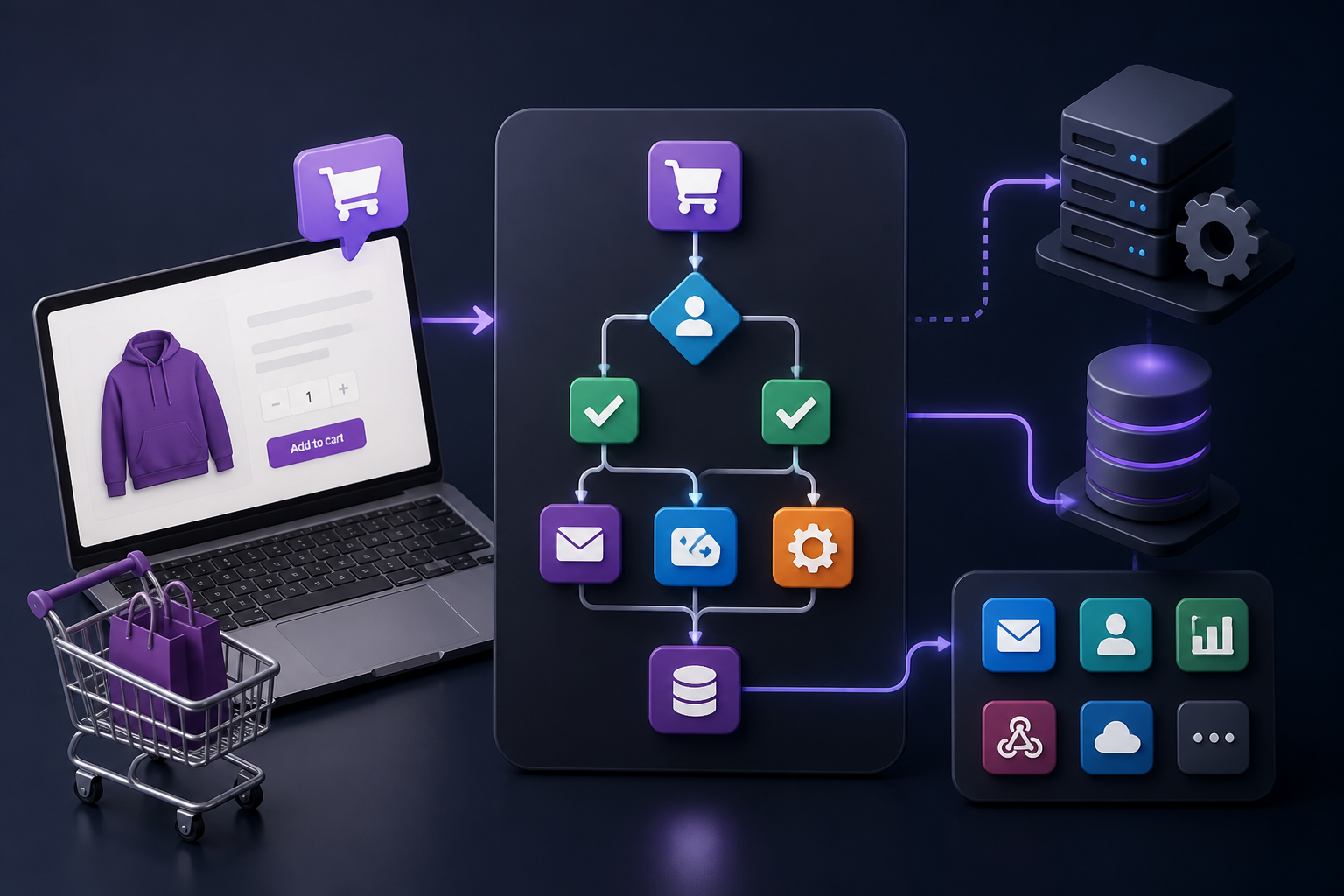
To successfully automate WooCommerce, store architects and engineering teams must find a delicate balance between transactional efficiency, background processing stability, and operational scalability. A native woocommerce automation plugin allows managers to build complex, event-driven workflows directly inside the WordPress dashboard without relying entirely on third-party SaaS middleware. However, introducing automated tasks directly into the WordPress environment introduces critical technical dependencies on database performance, PHP execution limits, and the underlying Action Scheduler engine.
This technical guide evaluates the best WordPress-native options, dissects their architectural implementations, and provides concrete blueprints for scaling operations. Whether you are aiming to reduce manual support tasks, execute behavioral sequences, or synchronize inventory across platforms, selecting and configuring the correct framework is foundational to your store’s performance. For international stores—particularly those operating in Europe requiring localized compliance frameworks under the concept of WooCommerce Automatisierung—keeping processing local on your own database is also a critical privacy and GDPR asset.
Quick Orientation: Executive Decision Matrix
For store architects and developers evaluating solutions under tight implementation schedules, the following decision matrix categorizes the leading WooCommerce automation tools based on execution model, database footprint, and primary use case.
| Plugin Name | Primary Architecture | Best For | Action Scheduler Reliance | Key Technical Strengths |
|---|---|---|---|---|
| AutomateWoo | Native WP Extension (WooCommerce Owned) | Deep WooCommerce core integration, subscriptions, memberships | Heavy (Custom Action Scheduler queues) | Direct database integration, minimal external HTTP overhead, custom PHP variables |
| Uncanny Automator | Site-Wide WP Automation Framework | Cross-plugin interactions (LMS, CRM, Forms, WooCommerce) | Moderate (Hybrid background processing) | Deepest third-party WordPress plugin ecosystem support, anonymous user triggers |
| FunnelKit Automator | E-Commerce Marketing & CRM Automation | Cart recovery, visual email builder, customer analytics | Heavy (Dedicated queue tables) | Built-in contact scoring, visual flowchart builder, optimized broadcast engine |
| FlowMattic | Lightweight In-Dashboard API Connectors | Webhook processing, API integrations inside WP | Low (Instant execution options) | Unlimited tasks, visual node builder, native webhook receiver/sender |
| SureTriggers | Hybrid Cloud-Assisted Executor | Offloaded processing, cloud multi-app connections | Very Low (Offloaded to cloud API) | Reduces local server CPU load, bridges WordPress with external SaaS seamlessly |
1. Architecture of Native WooCommerce Automation
To understand how a WooCommerce automation plugin functions, developers must look beneath the user interface and examine how event triggers are captured, evaluated, and executed within the WordPress lifecycle.
The Trigger-Condition-Action (TCA) Framework
Every native WordPress workflow automation system operates on a state-machine model known as the Trigger-Condition-Action (TCA) framework:
- Trigger: An event hook fired within WordPress or WooCommerce (for instance,
woocommerce_order_status_changedorwoocommerce_checkout_order_processed). - Condition: A series of boolean evaluation rules that check context (e.g., “Order total > $100” AND “Customer lifetime value > $500”). If any non-optional condition evaluates to false, execution halts immediately.
- Action: The execution payload carried out if conditions pass (e.g., updating user meta, issuing a single-use coupon, sending an API POST request to a fulfillment provider, or enqueueing a deferred transactional email).
The Role of Action Scheduler
When an event occurs in WooCommerce—such as a customer placing an order—executing complex operations (like generating PDFs, validating inventory, calling external APIs, or building personalized email templates) synchronously during the HTTP request lifecycle would severely degrade response times and increase time-to-first-byte (TTFB). In worst-case scenarios, it causes PHP execution timeouts at checkout.
Native automation plugins solve this by leveraging WooCommerce developer documentation standards surrounding Action Scheduler. Action Scheduler is a background processing library designed specifically for asynchronous task queuing in WordPress.
// Conceptual flow of asynchronous event execution
Order Placed (HTTP Request)
   │
   ├──► Fires Hook: woocommerce_order_status_completed
   │
   ├──► Automation Plugin Captures Event
   │
   ├──► Enqueues Task into `wp_actionscheduler_actions`
   │
   └──► Returns 200 OK to Customer Fast

Background Worker (WP-Cron / Server Cron)
   │
   ├──► Fetches Pending Tasks from Action Scheduler Queue
   │
   ├──► Evaluates Workflow Conditions
   │
   └──► Executes Workflow Actions (Email, API Call, User Meta Update)
By deferring actions to Action Scheduler, native plugins ensure that customer-facing interactions remain fast. However, high-volume stores running hundreds of automated workflows per hour can rapidly bloat the wp_actionscheduler_actions and wp_actionscheduler_logs database tables, requiring dedicated database maintenance strategies.
Native Plugins vs. External Automation Engines
Store architects often must choose between running native WooCommerce automation plugins or relying on external integration platforms (like Zapier, Make, or n8n). Each approach carries distinct architectural trade-offs:
| Feature / Dimension | Native WooCommerce Plugins | External Automation Engines | Hybrid Architecture |
|---|---|---|---|
| Execution Context | Runs locally on the WordPress web server | Runs on isolated external cloud infrastructure | Triggers locally, offloads heavy API tasks externally |
| Data Privacy & GDPR | Data never leaves your primary database infrastructure | Data passes through third-party cloud servers | Controlled based on payload contents |
| Server Overhead | Consumes local PHP processes and MySQL memory | Zero local impact beyond outgoing webhooks | Minimal local footprint for routing |
| Access to Core Objects | Direct access to $order, $product, and WP DB objects | Limited to REST API endpoints and webhooks | Full local hook control with API flexibility |
| Cost Scaling | Flat annual plugin license regardless of task volume | Usage-based pricing (per task/operation cost) | Predictable baseline costs with scalable cloud workers |
For store owners seeking deep customization with direct access to WordPress database objects, an in-dashboard plugin provides speed of setup and data localization. However, for high-concurrency environments processing thousands of transactions daily, offloading execution using custom WooCommerce API workflows or external message queues prevents server resource contention.
2. Key Criteria for Evaluating WooCommerce Automation Tools
When selecting a native workflow runner, evaluating different woocommerce automation tools requires analyzing functional requirements and infrastructure capacity alongside marketing checklists.
1. Trigger Variety and Custom Hook Support
The plugin must natively support core WooCommerce hooks across order lifecycles, customer accounts, subscriptions, memberships, and inventory changes. Furthermore, enterprise implementations require the ability to register custom PHP hooks as automation triggers.
2. Condition Granularity & Complex Logic
Basic automation systems only support flat single-condition logic. Advanced workflow engines allow multi-level condition grouping (AND/OR logic), dynamic comparison against custom user meta, inventory status verification, historical purchase behavior analysis, and product category/attribute matching.
3. Performance Footprint & Database Clean-up
An improperly optimized automation engine can add millions of rows to the wp_options and custom action tables. The ideal plugin implements self-cleaning log retention policies, indexes its database queries efficiently, and minimizes autoloaded options in memory.
4. Ecosystem Integration Depth
E-commerce workflows rarely operate in isolation. The plugin must seamlessly integrate with key extensions such as WooCommerce Subscriptions, WooCommerce Memberships, LearnDash, Gravity Forms, WooCommerce Points and Rewards, and popular email service providers (ESPs).
5. Developer Extensibility
For developer teams, closed-source or non-extensible plugins create technical debt. The plugin should offer developer-facing APIs, action hooks, filter hooks, and custom code action blocks to allow execution of bespoke PHP functions within any workflow sequence.
3. In-Depth Comparison of Leading Plugins
Below is a technical breakdown of the five leading WordPress-native WooCommerce automation plugins currently available.
1. AutomateWoo
Acquired directly by WooCommerce (Automattic), AutomateWoo is widely considered the gold standard for native WooCommerce-first automation.
Best for: Stores seeking deep, official compatibility with WooCommerce Subscriptions, Memberships, and dynamic coupon rules with a code-first mindset.
Technical Architecture
AutomateWoo is built specifically for WooCommerce environments. It registers custom post types for workflows and leverages Action Scheduler for queuing deferred events. When planning an automatewoo woocommerce deployment, developers benefit from deep, native programmatic bindings to WooCommerce core data models, meaning instances of WC_Order, WC_Product, and WC_Customer are natively accessible across all workflow context passes.
Key Capabilities
- Abandoned Cart Recovery: Tracks guest and registered user shopping carts via session hooks and sends timed follow-up email sequences with personalized dynamic coupon codes.
- Subscription Automation: Direct triggers for WooCommerce Subscriptions events (e.g., renewal payment failures, status transitions, upcoming renewal notifications).
- Dynamic Coupons: Generates unique single-use coupon codes on the fly, storing them temporarily in the database with automatic expiration cleanup.
- Referrals Add-on: Integrates custom referral tracking logic natively without requiring an external affiliate system.
Pros & Cons
- Pros: Flawless compatibility with official WooCommerce extensions; rock-solid code base following official WordPress coding standards; minimal third-party operational risk.
- Cons: Limited native integrations outside the immediate WooCommerce plugin ecosystem (e.g., non-WooCommerce LMS tools require extra custom code); no visual drag-and-drop workflow canvas (uses a structured rules interface).
2. Uncanny Automator
Uncanny Automator functions as the “Zapier of WordPress,” acting as a site-wide automation bridge across dozens of independent WordPress plugins.
Best for: Site owners needing cross-plugin connectivity, such as linking WooCommerce sales directly to online courses (LMS), membership hubs, or community forums.
Technical Architecture
Unlike AutomateWoo which centers strictly on e-commerce, Uncanny Automator operates as a generic, highly optimized workflow hub. It uses a decoupled recipe engine that listens for active plugin hooks across the entire WordPress runtime. It supports both Logged-In User Recipes and Everyone (Anonymous) Recipes, managing user session states dynamically.
Key Capabilities
- Cross-Plugin Bridging: Connects WooCommerce actions to non-e-commerce plugins (e.g., enrolling a buyer in a LearnDash course, adding them to a FluentCRM list, and sending a Discord message via webhooks simultaneously).
- User Creation & Management: Can automatically register WordPress accounts, assign custom roles, and update user meta based on product purchases.
- Webhook Router: Built-in inbound and outbound webhook capabilities allow recipes to trigger external systems or receive external JSON payloads to trigger local WordPress actions.
Pros & Cons
- Pros: Unrivaled breadth of integrations across the WordPress ecosystem; highly intuitive user interface; flexible webhooks engine; strong developer hooks API.
- Cons: Highly complex e-commerce rules (like historical customer aggregation) require careful recipe configuration to prevent unnecessary database queries.
3. FunnelKit Automator
FunnelKit Automator (formerly Autonami) is tailored heavily toward e-commerce email marketing, customer journey automation, and sales funnel optimization.
Best for: E-commerce brands wanting a self-hosted alternative to CRM tools like Klaviyo or ActiveCampaign, complete with a visual flowchart builder.
Technical Architecture
FunnelKit Automator features a modern visual flowchart builder allowing developers and marketers to construct complex branching paths with delay nodes, conditional splitters, and goal checks. It includes a dedicated database infrastructure to handle high-frequency contact tracking and marketing analytics without clogging standard WordPress option tables.
Key Capabilities
- Visual Workflow Canvas: Intuitive drag-and-drop diagramming tool for designing branching paths, delays, and dynamic actions.
- Native Marketing Engine: Includes broadcast engines, transactional email templates, SMS integrations (Twilio), and contact segmentation models directly inside WordPress.
- Deep E-Commerce Metrics: Tracks customer lifetime value (LTV), order frequency, average order value (AOV), and cart abandonment rates directly inside the workflow analytics dashboard.
Pros & Cons
- Pros: Superior visual design interface; outstanding for stores seeking to replace expensive external ESPs; native abandoned cart and review request engines.
- Cons: Higher database storage footprint due to rich contact activity logging; can be overly feature-dense if you only require simple backend status automations.
4. FlowMattic
FlowMattic is an ultra-lightweight, high-speed automation plugin engineered specifically to replicate visual API connector platforms inside WordPress.
Best for: Developers and technical teams seeking lightweight webhook routing and complex internal/external data parsing without ongoing task-usage fees.
Technical Architecture
FlowMattic focuses on lightweight execution efficiency. It allows asynchronous and synchronous node processing and provides granular control over webhooks, custom execution steps, and JSON parsing routines directly inside the dashboard.
Key Capabilities
- Visual Node Builder: Unlimited multi-step workflows configured through connected action nodes.
- Advanced Data Manipulation: Built-in formatters for text, dates, numbers, array mapping, and custom JavaScript/PHP execution steps.
- Resource Conscious: Minimal core footprint designed specifically to optimize execution execution times and memory usage.
Pros & Cons
- Pros: Outstanding value with no per-task fees; excellent tool for developer-centric webhook routing and custom data handling; lightweight footprint.
- Cons: Fewer pre-built out-of-the-box e-commerce marketing templates compared to FunnelKit or AutomateWoo; requires higher developer comfort with webhooks and API structure.
5. SureTriggers
SureTriggers adopts a hybrid cloud-assisted approach to WordPress automation.
Best for: Sites on limited hosting plans or multi-site networks that want to offload automation compute loads to external cloud instances.
Technical Architecture
While installed as a WordPress plugin, SureTriggers offloads the heavy computational logic, trigger evaluation, and action execution to its cloud-based SaaS orchestration engine. The local plugin acts as an lightweight agent that communicates with the SaaS platform via secure, authenticated REST API pipelines.
Key Capabilities
- Offloaded Execution: Complex automation logic runs on cloud infrastructure, preserving server CPU cycles and database memory on the host site.
- Multi-Site Management: Enables centralized automation control across multiple WordPress installations and external SaaS platforms from a single web dashboard.
- SaaS Ecosystem Connections: Connects native WordPress plugins directly to external cloud applications (e.g., Slack, Google Sheets, Airtable, Notion) without requiring custom API tokens for each service.
Pros & Cons
- Pros: Drastically reduces server load on high-traffic WooCommerce stores; simplified multi-app integration; smooth UI.
- Cons: Data leaves the local WordPress database environment (compliance consideration); dependent on third-party cloud uptime for local action execution.
Implementing Marketing Automation for WooCommerce
Executing successful marketing automation for woocommerce involves more than just blasting transactional emails. A high-performing setup leverages behavioral triggers to coordinate personalized customer touchpoints without over-allocating server resources. When setting up marketing automation woocommerce structures, developers must prioritize data-conscious processing to prevent dynamic coupon generation and tracking loops from exhausting database pools.
For example, instead of running resource-intensive database queries to find a user’s purchase history during an active checkout request, a smart marketing automation strategy caches lifetime spend figures in user meta. When a trigger like woocommerce_order_status_completed fires, the automation engine reads this single cached field instantly, evaluates segmentation logic, and hands off the email sequence to a background queue. This protects checkout speeds while executing tailored cross-sells, loyalty rewards, or win-back campaigns.
4. Technical Deep Dive: Native Hook Execution & Action Scheduler Tuning
Achieving stable performance with a native WooCommerce automation plugin requires a fundamental understanding of how action hooks trigger background tasks and how to optimize Action Scheduler.
Understanding Hook Execution Order
When an order is submitted through WooCommerce checkout, WordPress fires a sequential series of hooks. Automation plugins hook into these events to trigger workflows:
1. woocommerce_checkout_process
2. woocommerce_checkout_order_processed
3. woocommerce_payment_complete
4. woocommerce_order_status_pending -> processing
5. woocommerce_order_status_changed
If an automation plugin attempts to run expensive operations directly inside woocommerce_checkout_order_processed, the buyer’s browser will spin until all workflow actions complete. Proper automation plugins intercept these hooks and immediately pass the execution context off to Action Scheduler using as_enqueue_async_action() or as_schedule_single_action().
Configuring Action Scheduler for High-Volume Stores
By default, Action Scheduler is triggered by WP-Cron, which relies on site visitors hitting the frontend of your website to trigger queue processing. On high-volume or enterprise e-commerce sites, relying on default WP-Cron creates significant issues:
- Race conditions: Multiple requests can trigger concurrent cron executions, leading to queue locking or execution delays.
- Latency spikes: Customer page loads bear the overhead of processing background tasks.
- Stuck jobs: High transactional volume can cause the default runner to hit PHP execution limits before processing pending actions.
Step 1: Disable Default WP-Cron
Open your site’s wp-config.php file and add the following constant to disable the default visitor-driven execution:
define( 'DISABLE_WP_CRON', true );
Step 2: Configure System Cron on the Server
Establish a true system cron job on your server (via SSH, cPanel, or your managed hosting panel) that fires every minute to execute tasks cleanly via WP-CLI:
* * * * * /usr/local/bin/wp cron event run --due-now --path=/var/www/html >/dev/null 2>&1
Step 3: Increase Action Scheduler Queue Processing Limits
For high-throughput environments processing hundreds of automated tasks per minute, developers can increase the batch size and concurrent queue runners using WordPress filters in a custom functionality plugin or theme functions.php file:
<?php
/**
 * Optimize Action Scheduler performance for high-volume WooCommerce automation.
 */

// Increase batch size for Action Scheduler processing
add_filter( 'action_scheduler_queue_runner_batch_size', function( $batch_size ) {
    return 100; // Default is usually 25
} );

// Increase maximum execution time allowance for background batches (in seconds)
add_filter( 'action_scheduler_queue_runner_time_limit', function( $time_limit ) {
    return 120; // Allow batch execution up to 120 seconds
} );

// Increase concurrent queue runners
add_filter( 'action_scheduler_queue_runner_concurrent_batches', function( $concurrent_batches ) {
    return 5; // Process up to 5 concurrent queues in parallel
} );
Writing Custom Extension Code for Native Plugins
When off-the-shelf actions fall short, developer-friendly plugins like AutomateWoo allow developers to register custom actions directly in PHP. Below is an example demonstrating how to register a custom programmatic action in AutomateWoo to update an external custom ERP system when a workflow executes:
<?php
if ( ! defined( 'ABSPATH' ) ) { exit; }

/**
 * Custom AutomateWoo Action to Sync Order to External ERP
 */
class Custom_AutomateWoo_Action_Sync_ERP extends AutomateWoo\\Action {

    public function __construct() {
        $this->title = __( 'Sync Order Data to External ERP', 'my-textdomain' );
        $this->group = __( 'Custom Integrations', 'my-textdomain' );

        // Define requirements context
        $this->required_data_items = [ 'order' ];
    }

    /**
     * Declare user inputs in the workflow builder interface
     */
    public function fields() {
        $this->add_field(
            ( new AutomateWoo\\Fields\\Text() )
                ->set_name( 'erp_endpoint_url' )
                ->set_title( __( 'ERP API Endpoint URL', 'my-textdomain' ) )
                ->set_required()
        );
    }

    /**
     * Action Execution Payload
     */
    public function run() {
        $order = $this->workflow->data_layer->get_order();
        $endpoint_url = $this->get_option( 'erp_endpoint_url' );

        if ( ! $order || ! $endpoint_url ) {
            return;
        }

        // Prepare order payload
        $payload = [
            'order_id'     => $order->get_id(),
            'total'        => $order->get_total(),
            'customer_email'=> $order->get_billing_email(),
            'date_created' => $order->get_date_created()->date( 'Y-m-d H:i:s' ),
        ];

        // Send secure remote HTTP POST request
        $response = wp_remote_post( esc_url_raw( $endpoint_url ), [
            'timeout' => 15,
            'headers' => [ 'Content-Type' => 'application/json' ],
            'body'    => json_encode( $payload ),
        ] );

        if ( is_wp_error( $response ) ) {
            $this->log_error( 'ERP Sync Failed: ' . $response->get_error_message() );
        }
    }
}

// Register the custom action class within AutomateWoo
add_filter( 'automatewoo/actions', function( $actions ) {
    $actions['custom_sync_erp'] = 'Custom_AutomateWoo_Action_Sync_ERP';
    return $actions;
} );
5. High-Impact E-Commerce Workflow Blueprints
To deliver real ROI, automation tools must be mapped to operational efficiency and revenue retention. Below are five practical, high-impact workflow blueprints engineered for WooCommerce stores.
Workflow Blueprint 1: Multi-Stage Abandoned Cart Recovery with Dynamic Discounts
Cart abandonment accounts for a major loss in revenue across e-commerce. A single follow-up email is rarely sufficient.
[Trigger: Cart Abandoned (Session Inactive 15 Mins)]
   │
   ├──► [Condition: User Has Not Placed Order in Last 24 Hours]
   │
   ├──► Step 1 (Delay 30 Mins): Send Email #1 - Helpful Support & Cart Contents Summary
   │
   ├──► Step 2 (Delay 24 Hours): Check Cart Status
   │      └─► [If Still Unpurchased]: Generate Dynamic 10% Coupon Code (24h Expiry)
   │      └─► Send Email #2 - Dynamic Discount Offer
   │
   └──► Step 3 (Delay 48 Hours): Send Final Urgency Notification (Coupon Expiring Soon)
Implementation Rules:
- Coupon Generation: Use dynamic single-use coupons to prevent coupon sharing across bargain aggregator sites.
- Exit Condition: Implement an automatic exit node: if the user completes checkout at any point, terminate all pending queued actions for that user session instantly.
Workflow Blueprint 2: VIP Customer Tiering & Automated Reward Issuance
Identifying and nurturing high-value customers increases customer lifetime value (LTV) substantially.
- Trigger: Order Status Changed to
Completed. - Conditions:
- Customer Total Spend (Lifetime) >= $1,000 OR Total Order Count >= 5.
- User Meta Key
is_vip_customerdoes NOT equalyes.
- Actions:
- Update User Meta: Set
is_vip_customertoyes. - Change User Role to
VIP Customer(enabling custom wholesale pricing or free shipping rules). - Send customized welcome email from the Store Owner containing an exclusive permanent VIP discount code.
- Send an internal notification webhook to Slack or Microsoft Teams alerting the key account team.
- Update User Meta: Set
Workflow Blueprint 3: Automated Order Fulfillment & Inventory Low-Stock Escalation
Streamline logistics operations and avoid stockouts without manual inventory checks.
- Trigger: Product Stock Level Drops Below Threshold (e.g., < 5 units).
- Conditions: Product Status is Published AND Item is NOT on Backorder.
- Actions:
- Send an urgent SMS alert via Twilio integration to the warehouse manager.
- Execute a HTTP POST request to supplier inventory system requesting an automated re-order quote.
- Tag the product as
Low Stockin WordPress to automatically enable frontend urgency countdown banners.
Workflow Blueprint 4: Subscription Renewal Failure Recovery (Dunning Management)
Failed payment processing is a leading cause of churn in subscription-based e-commerce stores running WooCommerce Subscriptions.
[Trigger: Subscription Renewal Payment Failed]
   │
   ├──► Action 1: Change Subscription Status to "On Hold"
   │
   ├──► Action 2: Send Dunning Email #1 (Friendly Payment Method Update Request)
   │
   ├──► Step 2 (Delay 3 Days): Evaluate Payment Status
   │      └─► [If Still Unpaid]: Trigger Automatic Retry via Payment Gateway
   │      └─► Send Email #2 - Urgency Warning
   │
   └──► Step 3 (Delay 7 Days):
          └─► [If Still Unpaid]: Cancel Subscription + Revoke Access (LMS/Memberships)
Workflow Blueprint 5: Post-Purchase Review Request & UGC Collection Pipeline
Maximize social proof by soliciting reviews after the customer has had adequate time to receive and use the product.
- Trigger: Order Status Changed to
Completed. - Delay Node: Delay execution for 14 days post-fulfillment.
- Conditions: Customer has not unsubscribed from transactional marketing; Order status remains
Completed(not refunded). - Actions:
- Send personalized email requesting a verified product review with a direct deep-link to the product review anchor tag.
- Incentivize completion: Issue an automated $5 gift coupon upon review submission.
Hybrid Architectures: How to Automate WooCommerce and External API Connections
While native WordPress automation plugins excel at local task handling, enterprise environments frequently demand a hybrid architecture that splits work between native plugins and external workflow orchestration tools. Implementing architectures that safely and reliably automate WooCommerce and external API pipelines prevents local PHP resource depletion while keeping core control in your dashboard.
In a hybrid topology, local native plugins capture granular WordPress hooks, evaluate local conditions, and handle user-facing UI updates. However, computationally intensive, data-transformative, or enterprise system integrations are routed outwards to self-hosted engines using specialized integration tools or custom webhooks.
For example, high-volume transactional pipelines can leverage local event capturing alongside an n8n WordPress integration. This setup allows native plugins like FlowMattic or Uncanny Automator to send structured outbound webhooks directly to an isolated n8n workflow engine. The external engine handles heavy data transformation, PDF rendering, external CRM sync, and artificial intelligence prompts, returning clean JSON status flags back to WooCommerce without impacting the primary database server.
Additionally, combining native plugins with wordpress AI automation frameworks opens advanced operational pathways, such as using local triggers to route customer support inquiries or order customization notes to Large Language Models (LLMs) for automated sentiment analysis, classification, and auto-drafted customer service responses.
7. Database Optimization, Security, and Risk Management
Running high-volume background automation directly inside the WordPress database introduces operational risks that must be proactively managed by system engineers.
Database Retention and Table Pruning
Plugins like AutomateWoo and FunnelKit log every workflow execution, condition check, and trigger evaluation. On busy stores, this can result in millions of rows in custom logging tables over time, slowing down database queries and increasing backup sizes.
Recommended Pruning Strategy:
- Limit Log Retention: Set log retention policies to automatically delete task execution logs older than 30 or 60 days.
- Clean Action Scheduler Logs: Regularly run maintenance queries or WP-CLI commands to purge completed and canceled actions from
wp_actionscheduler_actionsandwp_actionscheduler_logs.
Developers can execute WP-CLI commands via automated cron schedules to keep tables compact:
# Prune completed Action Scheduler logs older than 7 days
wp action-scheduler clean --batch-size=1000 --status=complete --force
Authentication & Webhook Security
When connecting native plugins to external systems via inbound or outbound webhooks, secure execution is critical to prevent malicious payload injection or unauthorized data manipulation.
- HMAC Signature Verification: Always sign outgoing webhooks using an HMAC SHA-256 signature calculated from the payload body and a shared secret key. Require incoming webhooks to supply matching headers.
- Input Sanitization and Validation: Treat all incoming webhook data as untrusted. Sanitize strings using
sanitize_text_field()and validate input types strictly before updating user meta or order statuses. - Rate Limiting Inbound Endpoints: Restrict endpoint access by IP range or implement rate-limiting headers to protect against Denial of Service (DoS) attacks targeted at automation webhooks.
8. Troubleshooting Common Automation Failures
Even well-architected automation systems run into failures. The following troubleshooting guide outlines root causes and corrective steps for common issues encountered when running a WooCommerce automation plugin.
| Symptom / Error | Root Cause | Technical Resolution |
|---|---|---|
| Workflows stuck in “Pending” status | WP-Cron failure or exhausted Action Scheduler worker threads | Disable default WP-Cron, implement system server cron, and increase concurrent batch worker filters in PHP. |
| Duplicate email execution / double actions | Race conditions triggered by parallel HTTP requests or overlapping cron runners | Ensure cron runs via CLI single-thread. Implement strict user/order meta locks (`add_post_meta` lock checks) during workflow execution. |
| `PHP Fatal Error: Allowed Memory Size Exhausted` | Large dataset iterations (e.g., looping through 10,000 customers in a single thread) | Batch process datasets into paginated chunks using Action Scheduler single queued actions instead of executing in a single `foreach` loop. |
| Emails failing silently | Server `wp_mail()` relay blocking, unauthenticated sender address, or missing SMTP relay | Install a dedicated transactional SMTP plugin (e.g., Mailgun, SendGrid, Postmark) with SPF, DKIM, and DMARC records properly configured. |
| Webhooks returning HTTP 403 / 401 Errors | REST API authentication failures, WAF blocking (Cloudflare/ModSecurity), or invalid nonce execution | Whitelist endpoint paths in server security firewalls, check authorization bearer tokens, and verify REST routes in WordPress. |
9. Frequently Asked Questions (FAQ)
What are examples of workflow automation in WooCommerce?
Examples of WooCommerce workflow automation include automatically recovering abandoned shopping carts with dynamic discount codes, routing high-value customer orders to specialized fulfillment teams, updating subscriber access when recurring payments fail, sending timed review requests post-delivery, and updating user roles based on lifetime spend thresholds.
What are the four main types of e-commerce automation?
The four primary functional types of e-commerce automation are:
- Customer Lifecycle & Marketing Automation: Email sequences, abandoned cart recovery, re-engagement campaigns, and personalized promotional offers.
- Operational & Order Fulfillment Automation: Synchronizing orders to ERP/WMS platforms, generating shipping labels, and managing stock replenishment alerts.
- Customer Support & Communication Automation: Automated order status updates, transactional SMS notifications, and AI-driven support ticket routing.
- Data Management & Financial Reporting Automation: Syncing sales tax logs to accounting software, updating customer CRM profiles, and aggregating analytics.
Will adding a WooCommerce automation plugin slow down my store’s checkout speed?
If properly configured, no. High-quality automation plugins defer execution to background task queues like Action Scheduler, ensuring that customer-facing HTTP requests complete instantly. However, if workflows are set to run synchronously on real-time order hooks, performance degradation can occur. Always ensure heavy tasks run asynchronously.
AutomateWoo vs. Uncanny Automator: Which should I choose?
Choose AutomateWoo if your focus is strictly e-commerce marketing, subscription retention, dynamic coupons, and deep WooCommerce-native functionality. Choose Uncanny Automator if you need to connect WooCommerce with other WordPress plugins across your site, such as LMS platforms, community plugins, custom forms, and external webhook services.
Is it safe to rely on native plugins instead of external platforms like Zapier?
Yes, provided your hosting infrastructure is adequately provisioned. Native plugins offer flat-rate pricing, lower latency for local data, and superior data privacy compliance (GDPR) since customer information remains on your server. However, high-concurrency enterprise stores processing thousands of daily orders often benefit from offloading heavy computational tasks using external platforms like n8n documentation guidance for asynchronous background handling.
Conclusion & Strategic Roadmap
Deploying a native woocommerce automation plugin is one of the most effective methods for scaling e-commerce operations, lowering customer support overhead, and maximizing store revenue. By keeping workflow execution closely coupled to WordPress core data models, store owners achieve granular control over customer journeys and transactional processes.
To ensure long-term stability and peak performance, store architects should follow this practical implementation roadmap:
- Select the Right Tool for the Job: Use AutomateWoo for WooCommerce-centric subscriptions and retention marketing; select Uncanny Automator for site-wide cross-plugin integration; and deploy FunnelKit Automator for advanced visual email funnels.
- Decouple Background Processing: Disable default WP-Cron in
wp-config.phpand execute tasks via server-level system cron to prevent checkout latency. - Tune Action Scheduler Parameters: Increase queue processing batch limits and concurrent worker counts to accommodate peak holiday traffic spikes.
- Implement Database Maintenance: Enforce automated log retention policies to prevent database bloat in options and logging tables.
- Adopt a Hybrid Approach for Heavy Workloads: Maintain simple transactional logic natively, but offload heavy API transformations and AI workloads to isolated external execution engines.
