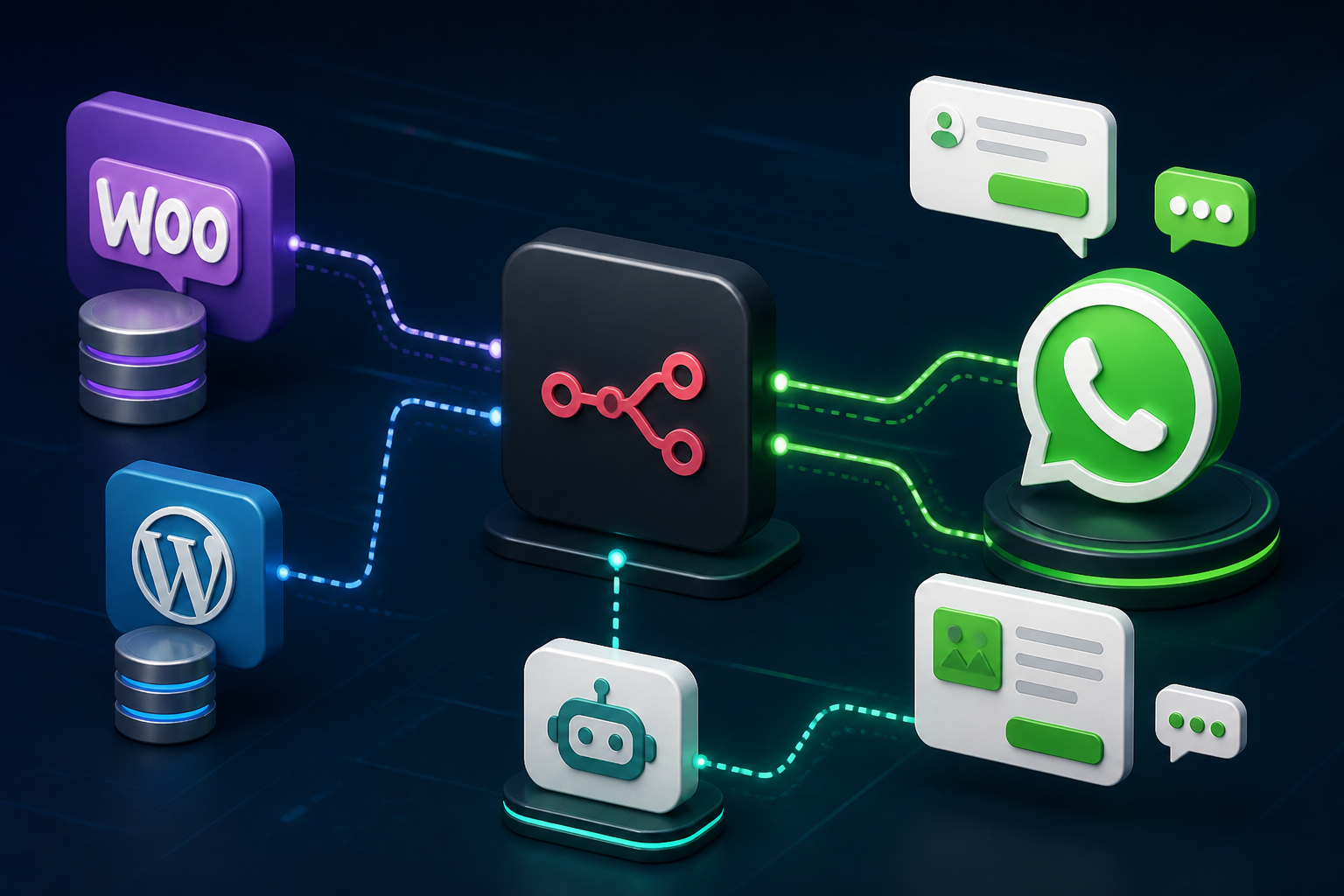
Integrating messaging infrastructure directly into automated business systems is a cornerstone of modern digital architecture. WhatsApp, with its global active user base exceeding two billion, offers unmatched engagement rates for transactional alerts, customer support workflows, and order management updates. However, engineering a production-ready, resilient messaging pipeline requires overcoming significant technical complexity. Developers and automation architects frequently encounter hurdles such as Meta Cloud API authentication nuances, strict 24-hour messaging window enforcement, dynamic template message parameter formatting, and incoming webhook signature validation.
This technical guide provides comprehensive, battle-tested n8n workflow templates for WhatsApp API integrations. By leveraging self-hosted or cloud-based n8n instances alongside the official Meta Cloud API, organizations can establish robust, scalable messaging pipelines without incurring prohibitive third-party aggregator costs or sacrificing data privacy. For teams exploring broader organizational automations, reviewing our curated list of high-impact n8n automation ideas offers helpful context for expanding enterprise integrations.
Throughout this blueprint, you will gain access to architectural frameworks, complete n8n JSON schemas, security validation strategies, and complete implementations for outbound transactional notifications, inbound message routers, and AI-driven conversational agents.
Section 1: Architectural Foundations of WhatsApp Automation in n8n
To construct reliable messaging pipelines, engineers must first understand the core architectural differences between consumer WhatsApp interfaces, third-party Business Messaging APIs, and Meta’s official WhatsApp Business Cloud API. Historical implementations relied heavily on unofficial web-scraping libraries or expensive intermediary brokers. Contemporary enterprise architectures standardise on Meta’s official Cloud API due to its direct infrastructure hosting, low latency, and compliance with high-volume transactional SLA requirements.
Meta Cloud API vs. On-Premises API vs. Unofficial Gateways
Selecting the correct messaging backend dictates your infrastructure overhead, message delivery success rate, and security stance. The technical differences are summarized below:
| Architecture Metric | Meta Cloud API (Recommended) | Meta On-Premises API | Unofficial Web Gateways |
|---|---|---|---|
| Hosting Infrastructure | Managed directly by Meta (AWS Cloud) | Self-hosted Docker containers / Kubernetes | Node.js Puppeteer / Web Automation Server |
| Setup Complexity | Low (API Token & Developer Portal) | High (Database, Core App, Web App instances) | Medium (Prone to session dropouts) |
| Operational Cost | Pay-per-conversation tier (Meta billing) | Server hosting costs + Meta conversation fees | Low initial cost, high ban/maintenance risk |
| Throughput Capacity | Up to 80+ messages/second (scalable) | Dependent on allocated container resources | Low (< 2-5 messages/second safely) |
| Compliance & Ban Risk | Fully compliant (Zero risk of account ban) | Fully compliant (Zero risk of account ban) | Extreme risk (Violates WhatsApp ToS) |
By using the Meta Cloud API inside n8n, your automated flows interface directly with Meta’s endpoint controllers using standardized RESTful JSON payloads. You maintain full data sovereignty, eliminate middleware markup, and gain access to native n8n capabilities like parallel execution, dead-letter queue handling, and granular retry strategies. Detailed configuration steps are documented in the official n8n documentation.
Understanding Meta Business Messaging Rules
Engineering workflows for WhatsApp requires adhering to Meta’s communication rules:
- The 24-Hour Customer Service Window: When a user sends a message to your WhatsApp Business number, a 24-hour timer opens. Within this window, your system can send non-templated, arbitrary text, media, or interactive messages.
- Template Messages (Outbound Initiated): To send a message outside the 24-hour window (or initiate a transaction), you MUST use a pre-approved Meta Message Template. Templates consist of structured text with indexed parameters (e.g.,
{{1}},{{2}}), optional headers, and interactive buttons. - Webhook Token Handshake & Signature Validation: Meta uses HTTP GET verification for webhook subscription setups and HTTP POST requests signed with HMAC-SHA256 headers (
X-Hub-Signature-256) for incoming message payloads.
For more foundational blueprint templates spanning various enterprise automation scenarios, consult our free n8n workflow template library.
Section 2: Provisioning Meta Cloud API Credentials for n8n
Before importing n8n workflow templates, you must provision access tokens and verify phone numbers within the Meta for Developers portal. Follow this step-by-step setup procedure.
Step 1: Create Meta Developer App and Business Asset Setup
- Navigate to the Meta for Developers portal and sign in with your corporate account.
- Click Create App, select Other as the app use case, and choose Business as the app type.
- Provide an App Name (e.g.,
n8n Enterprise Messaging Engine) and associate it with your Meta Business Account. - In the App Dashboard, scroll to Add Products to Your App and click Set Up under the WhatsApp card.
Step 2: Generate System User Permanent Access Tokens
The temporary access token provided in the WhatsApp Getting Started panel expires after 24 hours. A permanent token generated via a System User in Meta Business Manager is required for production environments.
- Open Meta Business Settings (
business.facebook.com/settings). - Under Users, select System Users and click Add.
- Set the System User role to Admin and assign a descriptive name (e.g.,
n8n-whatsapp-service-account). - Click Add Assets, assign your WhatsApp Developer App to the System User, and enable Full Control.
- Click Generate New Token, select your WhatsApp App, and set the token expiration to Never.
- Check the following permissions:
whatsapp_business_messagingwhatsapp_business_management
- Copy the generated permanent access token and store it securely in your secrets vault.
Step 3: Register Phone Number and Obtain Metadata IDs
In the Meta App Dashboard under WhatsApp > API Setup, identify and record the following identifiers:
- Phone Number ID: A numeric string identifying the sending phone channel (e.g.,
109876543210987). This is separate from the physical phone number. - WhatsApp Business Account ID (WABA ID): The overarching account entity ID managing templates and billing (e.g.,
123456789012345).
Section 3: Template 1 — Outbound Order Notifications (WooCommerce to WhatsApp)
Outbound transactional messaging is one of the most popular use cases for enterprise e-commerce platforms. This workflow template listens for order events from WooCommerce, sanitizes telephone formats into international E.164 syntax, formats dynamic parameters, and issues structured HTTP POST requests to the Meta Cloud API.
Technical Architecture & Dynamic Payload Mapping
When an order transitions to processing or completed in WooCommerce, a webhook fires into n8n. The workflow must execute four discrete tasks:
- Validate the incoming webhook payload authentication header.
- Extract customer phone details and strip special formatting characters to enforce standard E.164 format (e.g., converting
+1 (555) 019-2831to15550192831). - Inject order metadata (Customer Name, Order ID, Total Value, Delivery Track URL) into Meta’s required JSON template schema.
- Execute an HTTP Request node against
https://graph.facebook.com/v20.0/{PHONE_NUMBER_ID}/messagesusing Bearer authentication.
For store managers seeking comprehensive platform integration strategies, our detailed guide on WooCommerce workflow automation strategies provides further context on triggering events and database handling.
Complete Importable n8n Workflow JSON Schema
Below is the complete, valid n8n JSON workflow blueprint for Outbound Order Notifications. Copy and paste this directly into your n8n workflow canvas via the Import from JSON option.
{
  "name": "WhatsApp Outbound WooCommerce Order Notification",
  "nodes": [
    {
      "parameters": {
        "httpMethod": "POST",
        "path": "woocommerce-order-created",
        "options": {}
      },
      "type": "n8n-nodes-base.webhook",
      "typeVersion": 1.1,
      "position": [
        240,
        300
      ],
      "id": "wh-trigger-01",
      "name": "WooCommerce Webhook Listener"
    },
    {
      "parameters": {
        "mode": "runOnceForEachItem",
        "jsCode": "// Extract customer billing phone number
let rawPhone = $json.body.billing.phone || '';

// Format to standard E.164 numeric string (remove non-digits)
let formattedPhone = rawPhone.replace(/\\D/g, '');

// Validate customer name fallback
let firstName = $json.body.billing.first_name || 'Valued Customer';
let orderId = $json.body.id.toString();
let totalAmount = $json.body.total + ' ' + $json.body.currency;

return {
  json: {
    recipientPhone: formattedPhone,
    customerName: firstName,
    orderNumber: orderId,
    orderTotal: totalAmount
  }
};"
      },
      "type": "n8n-nodes-base.code",
      "typeVersion": 2,
      "position": [
        460,
        300
      ],
      "id": "code-format-02",
      "name": "Normalize Phone & Extract Order Data"
    },
    {
      "parameters": {
        "method": "POST",
        "url": "=https://graph.facebook.com/v20.0/{{$vars.WHATSAPP_PHONE_NUMBER_ID}}/messages",
        "sendHeaders": true,
        "headerParameters": {
          "parameters": [
            {
              "name": "Authorization",
              "value": "=Bearer {{$vars.WHATSAPP_PERMANENT_TOKEN}}"
            },
            {
              "name": "Content-Type",
              "value": "application/json"
            }
          ]
        },
        "sendBody": true,
        "specifyBody": "json",
        "jsonBody": "={\
  \"messaging_product\": \"whatsapp\",\
  \"to\": \"{{$json.recipientPhone}}\",\
  \"type\": \"template\",\
  \"template\": {\
    \"name\": \"order_confirmation_v1\",\
    \"language\": {\
      \"code\": \"en_US\"\
    },\
    \"components\": [\
      {\
        \"type\": \"body\",\
        \"parameters\": [\
          {\
            \"type\": \"text\",\
            \"text\": \"{{$json.customerName}}\"\
          },\
          {\
            \"type\": \"text\",\
            \"text\": \"{{$json.orderNumber}}\"\
          },\
          {\
            \"type\": \"text\",\
            \"text\": \"{{$json.orderTotal}}\"\
          }\
        ]\
      }\
    ]\
  }\
}",
        "options": {}
      },
      "type": "n8n-nodes-base.httpRequest",
      "typeVersion": 4.2,
      "position": [
        680,
        300
      ],
      "id": "http-meta-03",
      "name": "Send WhatsApp Template Message"
    }
  ],
  "connections": {
    "WooCommerce Webhook Listener": {
      "main": [
        [
          {
            "node": "Normalize Phone & Extract Order Data",
            "type": "main",
            "index": 0
          }
        ]
      ]
    },
    "Normalize Phone & Extract Order Data": {
      "main": [
        [
          {
            "node": "Send WhatsApp Template Message",
            "type": "main",
            "index": 0
          }
        ]
      ]
    }
  }
}
Meta Message Template Configuration Breakdown
The JSON schema above expects a corresponding Meta Message Template approved in your Meta WhatsApp Manager. Create the template with the following attributes:
- Template Name:
order_confirmation_v1 - Category: UTILITY
- Language: English (US) (
en_US) - Header Type: None (or Optional Image Document)
- Body String:
Hello {{1}}, thank you for your purchase! Your order #{{2}} totalling {{3}} has been confirmed and is currently being processed.
During runtime, n8n dynamically map index {{1}} to customerName, index {{2}} to orderNumber, and index {{3}} to orderTotal. Using mismatching parameter counts or incorrect type indicators will trigger Meta Cloud API validation error code 100.
Section 4: Template 2 — Inbound Webhook Listener and Multi-Branch Router
Processing incoming customer replies requires a reliable webhook architecture. When a end-user replies to a message or sends a message directly to your WhatsApp Business number, Meta dispatches an HTTP POST payload to your configured Webhook URL. The incoming engine must handle verification challenges, parse deeply nested JSON objects, filter out status delivery receipts, and route the message content based on type (text, interactive quick-replies, media attachments, or location shares).
Webhook Verification Verification Handshake (GET Protocol)
When configuring webhooks in Meta Developer Console, Meta issues an initial HTTP GET request with query parameters:
hub.mode: Set tosubscribe.hub.verify_token: A custom security secret string string defined by you.hub.challenge: A random string generated by Meta that must be echoed back in the response body.
In n8n, this is handled using an If Node or Switch Node directly after the Webhook node to check whether the incoming request contains hub.challenge. If present, n8n responds with raw text containing hub.challenge; if absent, it processes the request as a POST notification event.
Complete Importable Webhook Listener and Router JSON Schema
Import this JSON structure to instantly deploy an inbound webhook parsing engine capable of isolating message text, media file IDs, and interactive button payload keys.
{
  "name": "WhatsApp Inbound Webhook Listener & Router",
  "nodes": [
    {
      "parameters": {
        "httpMethod": "POST",
        "path": "whatsapp-inbound-webhook",
        "options": {}
      },
      "type": "n8n-nodes-base.webhook",
      "typeVersion": 1.1,
      "position": [
        180,
        340
      ],
      "id": "wh-inbound-01",
      "name": "Meta Webhook Ingest"
    },
    {
      "parameters": {
        "rules": {
          "values": [
            {
              "conditions": {
                "options": {
                  "caseSensitive": true,
                  "leftValue": "",
                  "typeValidation": "strict"
                },
                "conditions": [
                  {
                    "leftValue": "={{ $json.body.entry[0].changes[0].value.messages }}",
                    "operator": {
                      "type": "object",
                      "operation": "exists"
                    }
                  }
                ],
                "combinator": "and"
              },
              "renameOutput": "User Message Event"
            },
            {
              "conditions": {
                "options": {
                  "caseSensitive": true,
                  "leftValue": "",
                  "typeValidation": "strict"
                },
                "conditions": [
                  {
                    "leftValue": "={{ $json.body.entry[0].changes[0].value.statuses }}",
                    "operator": {
                      "type": "object",
                      "operation": "exists"
                    }
                  }
                ],
                "combinator": "and"
              },
              "renameOutput": "Status Read Receipt Event"
            }
          ]
        },
        "options": {}
      },
      "type": "n8n-nodes-base.switch",
      "typeVersion": 3.2,
      "position": [
        400,
        340
      ],
      "id": "sw-event-type-02",
      "name": "Filter Message vs Status Receipt"
    },
    {
      "parameters": {
        "mode": "runOnceForEachItem",
        "jsCode": "// Safely extract primary message structures
const changeValue = $json.body.entry[0].changes[0].value;
const contactObj = changeValue.contacts ? changeValue.contacts[0] : {};
const messageObj = changeValue.messages[0];

const senderWaId = messageObj.from; // Phone number
const senderName = contactObj.profile ? contactObj.profile.name : 'Unknown';
const messageType = messageObj.type;
const messageId = messageObj.id;

let extractedContent = '';

if (messageType === 'text') {
  extractedContent = messageObj.text.body;
} else if (messageType === 'interactive') {
  if (messageObj.interactive.type === 'button_reply') {
    extractedContent = messageObj.interactive.button_reply.id;
  } else if (messageObj.interactive.type === 'list_reply') {
    extractedContent = messageObj.interactive.list_reply.id;
  }
} else if (['image', 'document', 'audio', 'video'].includes(messageType)) {
  extractedContent = messageObj[messageType].id; // Meta Media ID
}

return {
  json: {
    senderWaId,
    senderName,
    messageType,
    messageId,
    extractedContent,
    rawTimestamp: messageObj.timestamp
  }
};"
      },
      "type": "n8n-nodes-base.code",
      "typeVersion": 2,
      "position": [
        640,
        240
      ],
      "id": "code-parse-msg-03",
      "name": "Parse Message Object"
    },
    {
      "parameters": {
        "rules": {
          "values": [
            {
              "conditions": {
                "options": {
                  "caseSensitive": true,
                  "leftValue": "",
                  "typeValidation": "strict"
                },
                "conditions": [
                  {
                    "leftValue": "={{ $json.messageType }}",
                    "operator": {
                      "type": "string",
                      "operation": "equals",
                      "singleValue": "text"
                    }
                  }
                ],
                "combinator": "and"
              },
              "renameOutput": "Route Text Message"
            },
            {
              "conditions": {
                "options": {
                  "caseSensitive": true,
                  "leftValue": "",
                  "typeValidation": "strict"
                },
                "conditions": [
                  {
                    "leftValue": "={{ $json.messageType }}",
                    "operator": {
                      "type": "string",
                      "operation": "equals",
                      "singleValue": "interactive"
                    }
                  }
                ],
                "combinator": "and"
              },
              "renameOutput": "Route Button Click"
            }
          ]
        },
        "options": {}
      },
      "type": "n8n-nodes-base.switch",
      "typeVersion": 3.2,
      "position": [
        880,
        240
      ],
      "id": "sw-msg-type-04",
      "name": "Route Content Type"
    }
  ],
  "connections": {
    "Meta Webhook Ingest": {
      "main": [
        [
          {
            "node": "Filter Message vs Status Receipt",
            "type": "main",
            "index": 0
          }
        ]
      ]
    },
    "Filter Message vs Status Receipt": {
      "main": [
        [
          {
            "node": "Parse Message Object",
            "type": "main",
            "index": 0
          }
        ]
      ]
    },
    "Parse Message Object": {
      "main": [
        [
          {
            "node": "Route Content Type",
            "type": "main",
            "index": 0
          }
        ]
      ]
    }
  }
}
Processing Inbound Payload Objects
Understanding Meta’s payload structure prevents workflow runtime exceptions. When a text message arrives, Meta wraps the data within an array containing entries and changes. A standard payload schema structure is illustrated below:
{
  "object": "whatsapp_business_account",
  "entry": [
    {
      "id": "123456789012345",
      "changes": [
        {
          "value": {
            "messaging_product": "whatsapp",
            "metadata": {
              "display_phone_number": "15550192831",
              "phone_number_id": "109876543210987"
            },
            "contacts": [
              {
                "profile": {
                  "name": "Jane Doe"
                },
                "wa_id": "15559998877"
              }
            ],
            "messages": [
              {
                "from": "15559998877",
                "id": "wamid.HBgLMTU1NTk5OTg4NzcVAgARGBI1RDFENzA2Q0ZDOUUxQUQ3QUEA",
                "timestamp": "1700000000",
                "text": {
                  "body": "I need assistance with my recent order."
                },
                "type": "text"
              }
            ]
          },
          "field": "messages"
        }
      ]
    }
  ]
}
Notice that status updates (sent, delivered, read acknowledgments) are delivered to the exact same webhook URL under the statuses array block instead of messages. The Switch node implementation in our JSON template isolates status receipts, avoiding unnecessary processing loops.
Section 5: Template 3 — Conversational AI Customer Support Agent Integration
Combining WhatsApp message routers with LLM capabilities turns basic auto-responders into intelligent conversational workflows. By connecting n8n’s Advanced AI Agent node to OpenAI models, system architects can build automated support channels capable of querying knowledge bases, evaluating order status APIs, and escalating complex queries to human operators.
To examine the foundational concepts of agentic design, refer to our comprehensive guide on AI agent workflow architecture.
Architectural Mechanics: Managing Conversational Memory and State
Stateless LLM calls fail in messaging platforms because users expect context retention across multi-turn interactions. In n8n, conversational memory is maintained by passing the customer’s unique WhatsApp phone number (senderWaId) as the session key into a Window Buffer Memory or Redis Chat Memory node. This ensures the model retains previous messages, purchase history, and intent classifications without leaking cross-tenant data.
Developers implementing AI model logic should reference the official OpenAI API documentation for model parameters and rate limits.
Complete Importable AI Agent WhatsApp Workflow Schema
{
  "name": "WhatsApp AI Support Agent Engine",
  "nodes": [
    {
      "parameters": {
        "inputSource": "passthrough"
      },
      "type": "n8n-nodes-base.executeWorkflowTrigger",
      "typeVersion": 1,
      "position": [
        200,
        300
      ],
      "id": "sub-trigger-01",
      "name": "Sub-Workflow Ingest"
    },
    {
      "parameters": {
        "options": {
          "systemMessage": "You are an enterprise support representative for an e-commerce platform. Assist customers professionally using verified data. If an issue requires manual operational intervention, respond with '[ESCALATE]' along with your explanation so the system can alert human agents."
        }
      },
      "type": "@n8n/n8n-nodes-langchain.agent",
      "typeVersion": 1.7,
      "position": [
        420,
        300
      ],
      "id": "ai-agent-02",
      "name": "AI Support Agent"
    },
    {
      "parameters": {
        "model": "gpt-4o",
        "options": {}
      },
      "type": "@n8n/n8n-nodes-langchain.lmChatOpenAi",
      "typeVersion": 1.2,
      "position": [
        420,
        520
      ],
      "id": "model-openai-03",
      "name": "OpenAI Chat Model",
      "credentials": {
        "openAiApi": {
          "id": "YOUR_OPENAI_CREDENTIAL_ID",
          "name": "OpenAI Production Account"
        }
      }
    },
    {
      "parameters": {
        "sessionKey": "={{ $json.senderWaId }}",
        "contextWindowLength": 10
      },
      "type": "@n8n/n8n-nodes-langchain.memoryBufferWindow",
      "typeVersion": 1.3,
      "position": [
        560,
        520
      ],
      "id": "memory-redis-04",
      "name": "Window Buffer Memory"
    },
    {
      "parameters": {
        "method": "POST",
        "url": "=https://graph.facebook.com/v20.0/{{$vars.WHATSAPP_PHONE_NUMBER_ID}}/messages",
        "sendHeaders": true,
        "headerParameters": {
          "parameters": [
            {
              "name": "Authorization",
              "value": "=Bearer {{$vars.WHATSAPP_PERMANENT_TOKEN}}"
            },
            {
              "name": "Content-Type",
              "value": "application/json"
            }
          ]
        },
        "sendBody": true,
        "specifyBody": "json",
        "jsonBody": "={\
  \"messaging_product\": \"whatsapp\",\
  \"recipient_type\": \"individual\",\
  \"to\": \"{{$node['Sub-Workflow Ingest'].json['senderWaId']}}\",\
  \"type\": \"text\",\
  \"text\": {\
    \"preview_url\": false,\
    \"body\": \"{{$json.output.replace(/\\\"/g, '\\\\\\\"')}}\"\
  }\
}",
        "options": {}
      },
      "type": "n8n-nodes-base.httpRequest",
      "typeVersion": 4.2,
      "position": [
        780,
        300
      ],
      "id": "http-outbound-reply-05",
      "name": "Send Direct Text Message Response"
    }
  ],
  "connections": {
    "Sub-Workflow Ingest": {
      "main": [
        [
          {
            "node": "AI Support Agent",
            "type": "main",
            "index": 0
          }
        ]
      ]
    },
    "OpenAI Chat Model": {
      "ai_languageModel": [
        [
          {
            "node": "AI Support Agent",
            "type": "ai_languageModel",
            "index": 0
          }
        ]
      ]
    },
    "Window Buffer Memory": {
      "ai_memory": [
        [
          {
            "node": "AI Support Agent",
            "type": "ai_memory",
            "index": 0
          }
        ]
      ]
    },
    "AI Support Agent": {
      "main": [
        [
          {
            "node": "Send Direct Text Message Response",
            "type": "main",
            "index": 0
          }
        ]
      ]
    }
  }
}
Human-in-the-Loop Escalation Routing Pattern
Purely automated channels risk frustrating users when non-standard issues arise. Implementing a clear Human-in-the-Loop escalation path is critical for enterprise support infrastructure.
- Intent Detection: The System Prompt inside the AI Agent instructs the model to include a designated string key (e.g.,
[ESCALATE]) if sentiment drops or technical issues exceed internal retrieval bounds. - Conditional Parsing: An n8n Switch/If Node checks whether the model’s text response includes
[ESCALATE]. - Operator Routing: If escalation is detected, n8n executes parallel paths: sending a WhatsApp message to the customer confirming human agent transfer, while dispatching a ticket creation payload to Zendesk, HubSpot, or a dedicated Slack team channel.
- Suppression Toggle: System records the customer’s
senderWaIdin a Redis cache key with an expiration window (e.g., 2 hours). Inbound messages received during this window bypass the AI workflow entirely, routing straight to real-time human agent consoles.
Section 6: Production Security, Rate Limits, and Infrastructure Maintenance
Running high-volume WhatsApp communication links requires careful operational maintenance, security validation, and infrastructure scaling.
HMAC-SHA256 Webhook Payload Authentication
To prevent malicious third parties from spoofing requests to your n8n Webhook URL, always enable HMAC signature verification. Meta attaches an X-Hub-Signature-256 header to every incoming webhook payload, formatted as sha256={signature}. This signature is created by hashing the raw incoming request body using your App Secret key.
In n8n, insert a Code Node immediately following the Webhook entry node to validate this signature prior to executing core workflow logic:
const crypto = require('crypto');

// Retreive values from environmental variables and headers
const appSecret = $env['META_APP_SECRET'];
const signatureHeader = $input.first().json.headers['x-hub-signature-256'] || '';
const rawBody = JSON.stringify($input.first().json.body);

if (!signatureHeader) {
  throw new Error('Security Alert: Missing X-Hub-Signature-256 header.');
}

// Compute expected HMAC SHA256 digest
const expectedSignature = 'sha256=' + crypto
  .createHmac('sha256', appSecret)
  .update(rawBody)
  .digest('hex');

if (signatureHeader !== expectedSignature) {
  throw new Error('Security Verification Failure: HMAC Signature mismatch.');
}

return $input.all();
Managing Throughput, Messaging Tiers, and Rate Limits
Meta enforces strict rate limits across the WhatsApp Business Cloud API based on your phone number’s current Messaging Tier:
- Unverified Trial: Up to 50 unique business-initiated recipients within a rolling 24-hour window.
- Tier 1: Up to 1,000 unique business-initiated recipients per 24 hours.
- Tier 2: Up to 10,000 unique business-initiated recipients per 24 hours.
- Tier 3: Up to 100,000 unique business-initiated recipients per 24 hours.
- Tier 4 (Unlimited): Unlimited business-initiated conversations per 24 hours.
To prevent execution failures when running bulk outreach workflows, enable rate-limiting settings inside the n8n HTTP Request Node settings tab. Set Batching Options to Batch Size: 50 with a Batch Interval: 1000ms to prevent triggering Meta API threshold limits (HTTP Status Code 429 Too Many Requests).
Dead Letter Queues and Robust Error Handling
In production environments, external API targets occasionally suffer outages or rate-limit rejections. Design robust workflows using n8n Error Trigger workflows:
- Create an independent error handling workflow in n8n triggered by an Error Trigger Node.
- In your primary WhatsApp workflows, open Workflow Settings and set Error Workflow to your error handler.
- In the error handling workflow, parse execution failure logs, push details into a database table (e.g., PostgreSQL or MySQL), and alert engineers via Slack or email.
- For transient failure codes (e.g., HTTP 500, 503), configure the retry parameters in your primary HTTP nodes: enable Retry On Fail, set Max Tries to
3, and configure exponential backoff delays.
Section 7: Troubleshooting Meta Cloud API and n8n Execution Errors
This reference matrix maps the most frequent error scenarios encountered when working with n8n and the Meta Cloud API to their operational root causes and direct remedies:
| Error Code / Message | System Component | Root Cause Analysis | Resolution Protocol |
|---|---|---|---|
401 Unauthorized / Invalid OAuth Access Token | Meta Graph API | Temporary access token has expired or System User token lost permissions. | Re-generate a permanent System User token in Meta Business Settings with whatsapp_business_messaging permissions. Update n8n environment variables. |
OAuthException (Code 100) / Param components... | HTTP Request Node | Mismatch between parameter counts expected by approved Meta Template and the JSON array payload provided by n8n. | Check the template definition inside WhatsApp Manager. Ensure the exact count of positional parameters ({{1}}, {{2}}) matches the objects passed in the parameters array. |
Error 131030 / Recipient phone number not in allowed list | Meta Cloud API | Attempting to message an unverified number while your WhatsApp Developer App is in Development Mode. | Add the target recipient number to the explicit testing list in Meta Developer Console under API Setup, or switch your App status from Development to Live mode. |
Error 131047 / Re-engagement message | Meta Cloud API | Attempted to send a standard (non-template) text or media message outside the 24-hour customer service window. | Convert outbound payload format from standard text (type: "text") to an approved template message format (type: "template"). |
Webhook Verification Fail / hub.challenge mismatch | n8n Webhook Node | n8n failed to echo back the exact raw hub.challenge string during Meta portal setup. | Verify that your n8n workflow returns the exact raw string value of query['hub.challenge'] with HTTP 200 header without additional quotes or JSON wrapper formatting. |
ECONNRESET or ETIMEDOUT | n8n Host Node | Network connectivity issues or strict outbound firewall blocks on the n8n host server. | Ensure outbound port 443 access is allowed for domain graph.facebook.com. Check server DNS configuration and egress routing. |
Section 8: Frequently Asked Questions
What is the financial cost structure of using n8n with the Meta Cloud API?
n8n is open-source and self-hostable, meaning you pay zero software license fees for self-hosted instances. Meta charges for the WhatsApp Business API on a conversation-based pricing model broken down into 24-hour billing sessions. Conversations are categorized into four tiers: User-Initiated Support (lowest cost), Utility Notifications (e.g., order updates), Authentication (e.g., OTP codes), and Marketing. The first 1,000 user-initiated service conversations per month are complimentary for each WhatsApp Business Account.
Can I send bulk broadcast messages to thousands of contacts using n8n?
Yes, n8n can process bulk messaging campaigns using template messages. However, you must comply with Meta’s Messaging Limits (Tiers) and maintain high message quality ratings. When executing bulk updates, configure n8n’s batching options inside the HTTP Request Node to enforce sending speeds that align with your tier limits and protect your sending reputation.
How do I manage multi-language WhatsApp templates inside n8n workflows?
Meta requires specifying the language code parameter (e.g., en_US, es_ES, de_DE) inside the template selection JSON block. In your n8n workflow, use a Code Node or Switch Node to check user locale attributes stored in your CRM or database, and dynamically inject the matching language.code string into the HTTP request body payload sent to Meta.
How do I test my WhatsApp n8n templates before deploying them to production?
Meta provides a default sandbox phone number within the Developer Console for testing. Add your personal mobile number to the verified testing recipient list in the Meta App Dashboard. Then, set up your n8n workflow using the sandbox Test Phone Number ID to execute test triggers, inspect webhook responses, and refine parameter mappings risk-free.
What security steps should I take to protect customer data in n8n?
Always enforce HTTPS on your n8n webhooks using SSL/TLS certificates (e.g., Let’s Encrypt). Enable HMAC-SHA256 signature verification on all incoming Meta webhooks to confirm origin authenticity. Store permanent access tokens and database secrets in secure environment variables or a secret vault rather than hardcoding credentials inside workflow nodes. Additionally, limit n8n database log retention if handling sensitive customer PII.
Section 9: Implementation Roadmap and Next Steps
Building production-grade messaging pipelines with n8n and the WhatsApp Business Cloud API provides an agile, owned automation layer for enterprise communications. To deploy these workflow templates into production successfully, follow this recommended roadmap:
- Provision Infrastructure: Create your Meta Developer App, assign assets to a dedicated System User, and generate a non-expiring permanent access token.
- Configure Templates: Submit your functional message templates (Utility/Notifications) inside Meta WhatsApp Manager and wait for approval.
- Import & Configure Blueprints: Import the provided n8n workflow JSON schemas into your n8n canvas. Configure environment variables for
WHATSAPP_PHONE_NUMBER_IDandWHATSAPP_PERMANENT_TOKEN. - Establish Security Controls: Implement the HMAC-SHA256 verification Code Node immediately downstream of your primary inbound Webhook listener.
- End-to-End Testing: Test sandbox triggers for both outbound template delivery and inbound message routing to ensure errors are captured safely.
- Scale & Expand: Integrate conversational AI agents, connect knowledge bases, and link downstream business management tools.
By standardizing your messaging infrastructure on self-hosted n8n instances and Meta’s official API, you maintain complete operational agility, reduce software overhead, and deliver real-time communication experiences across your digital channels.
